

Virtual Terminal
Enter card details received by phone to take a customer payment through Virtual Terminal in the Merchant Portal.
Configure transaction types
-
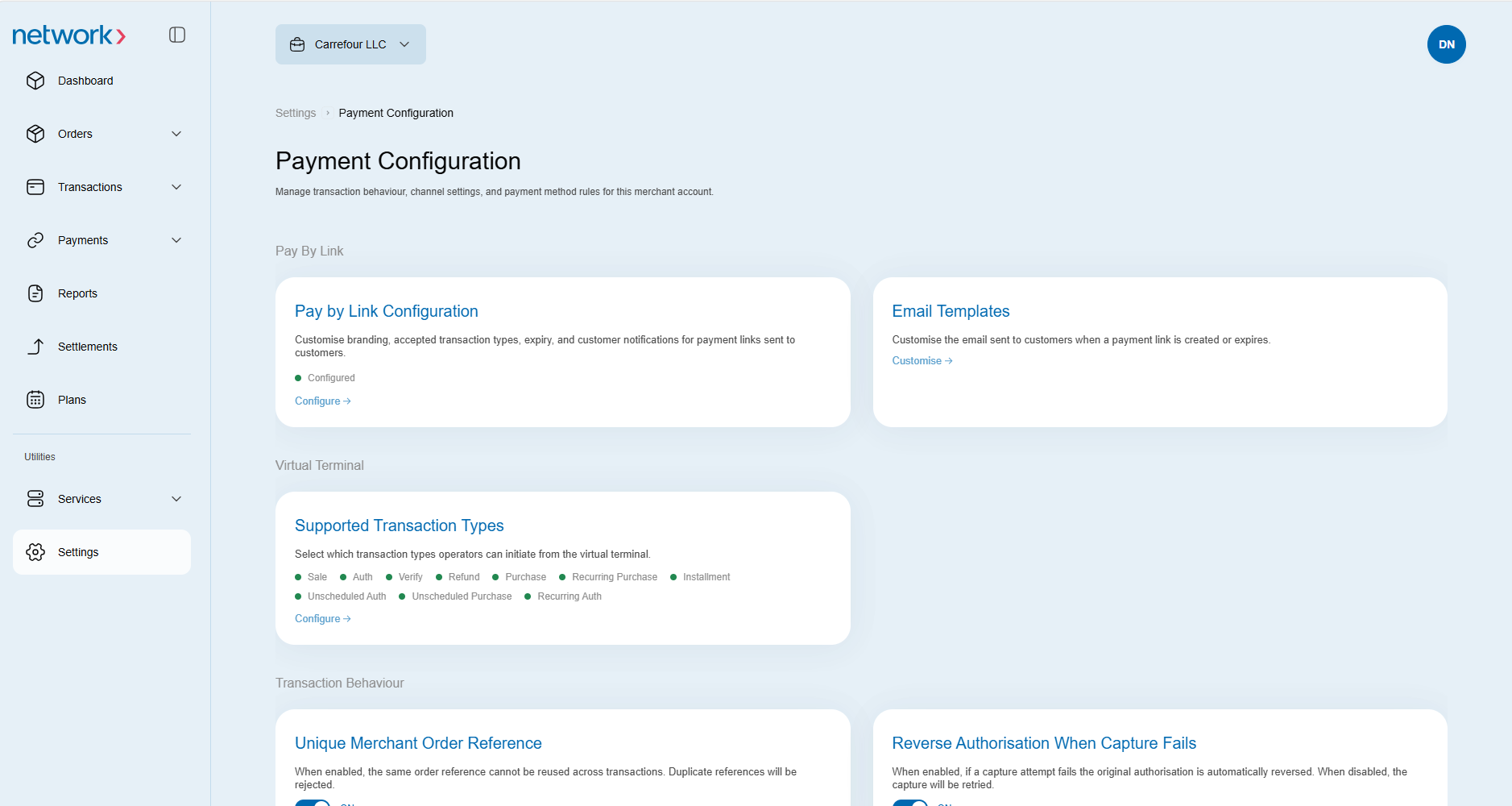
Open Settings → Payment Configuration.
-
Select Supported Transaction Types.
-
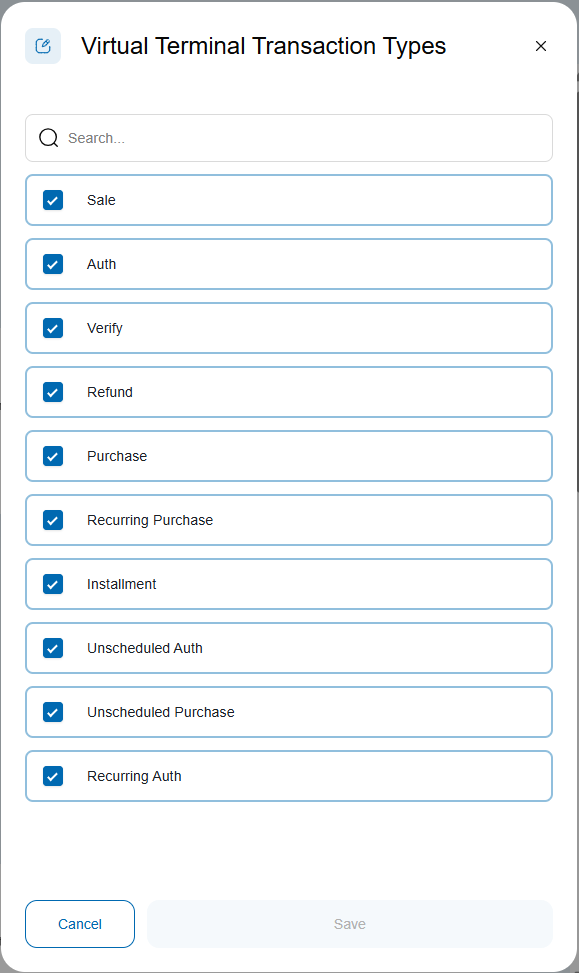
Select the transaction types you want to configure for Virtual Terminal.
Open Virtual Terminal
Open Payments → Virtual Terminal. The payment form contains Payment Information, Item Details, Card Details and Billing Details.
Enter payment information
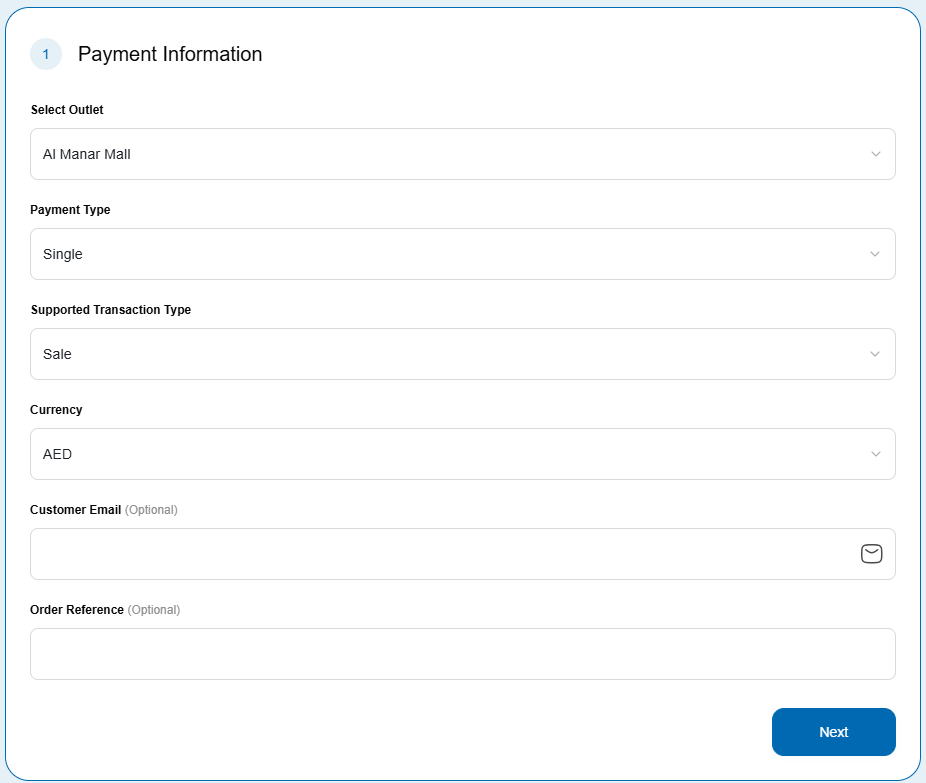
- Select values from the Select outlet, Payment type, Supported transaction type and Currency dropdowns.
- Enter a Customer email and Order reference if needed. Both fields are optional.
- Click Next.
Enter item details
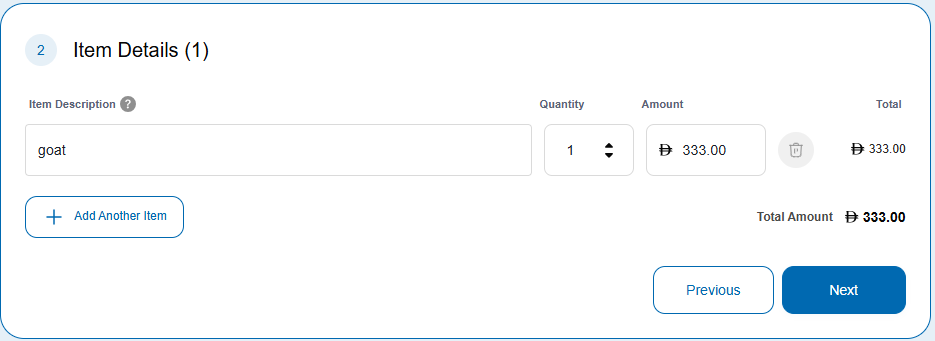
- Enter an Item description, Quantity and Amount.
- Click Add another item if you need more line items, then enter their details.
- Click Next.
Enter card details
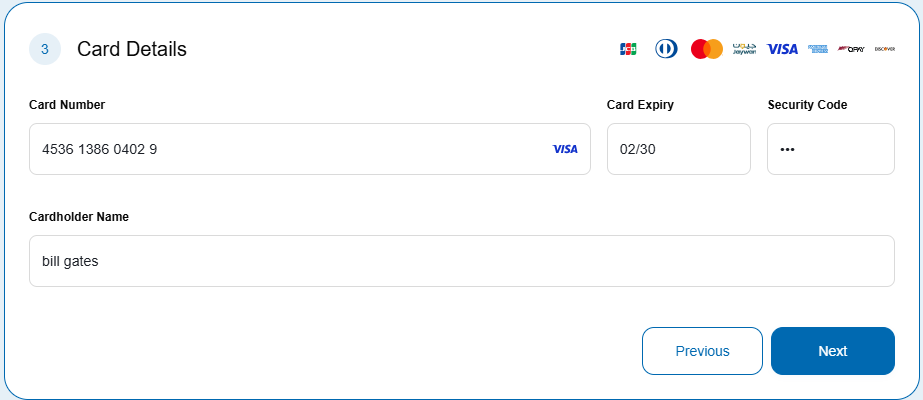
- Enter the Card number, Card expiry, Security code and Cardholder name.
- Click Next. The button remains disabled until the card number is valid.
Enter billing details
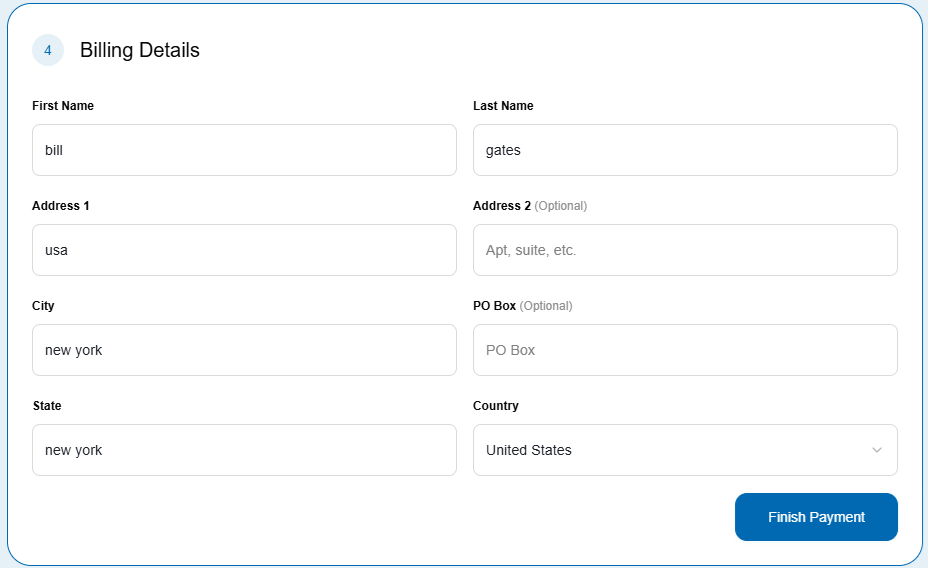
Complete the billing fields for the customer:
| Field | Entry |
|---|---|
| First name | Customer's first name |
| Last name | Customer's last name |
| Address 1 | Billing address line 1 |
| Address 2 | Billing address line 2 |
| City | Billing address city |
| State | Billing address state |
| Country | Billing address country |
| P.O. Box | Postal box number; optional |
Submit the payment
Finish Payment submits the paymentReview the payment and customer details before clicking Finish Payment. This is a payment-submission action, not a preview. Do not use a live payment to test the form.
Click Finish Payment when you are ready to submit.
Updated about 4 hours ago
Did this page help you?