

Share a Payment Link
Engage buyers instantly, offering unparalleled convenience. Tailor your message to specific audiences, maximising conversion potential with personalised outreach.
Share a payment link
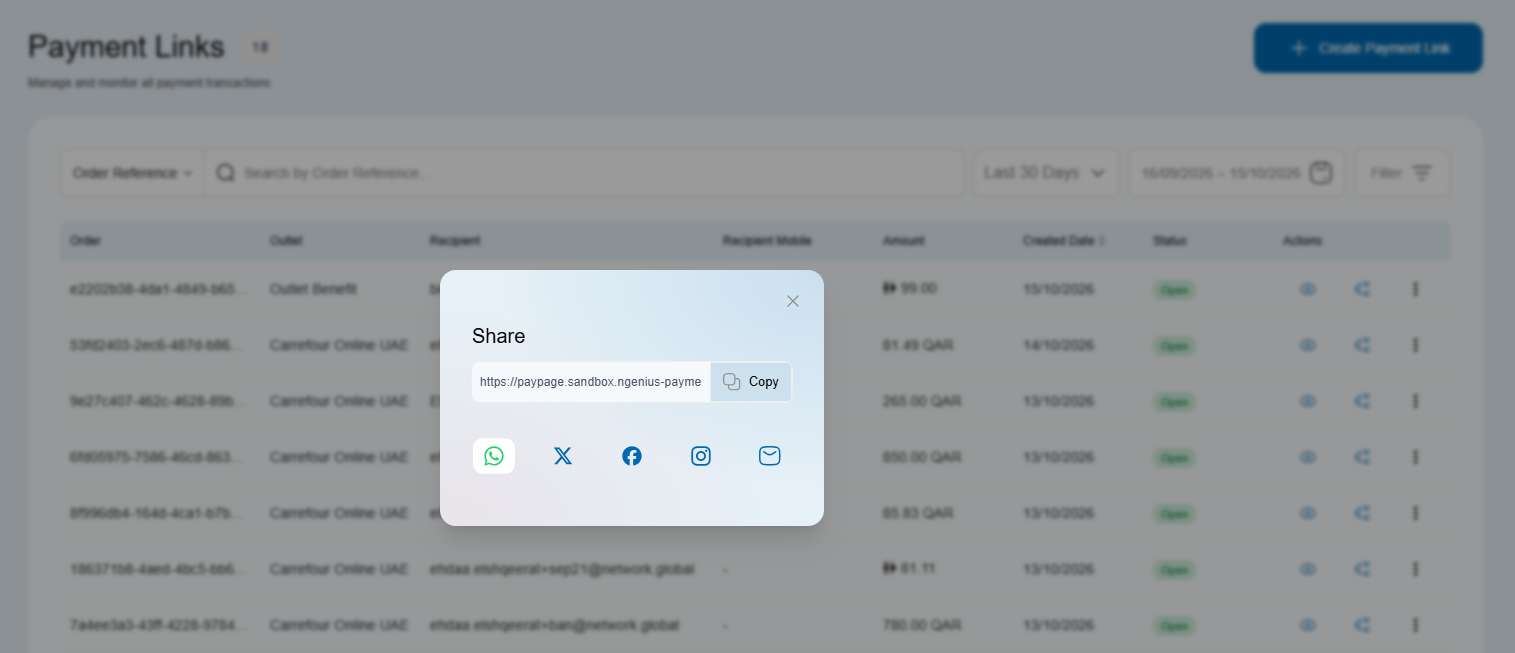
Copy an existing payment link or share it with your customer through WhatsApp, X (Twitter), Instagram, Facebook or email from the Merchant Portal.
Before you start
Create a payment link if you do not already have one to share.
Share an existing link
-
Sign in to the Merchant Portal and open Payments → Payment Link.
-
Find the link on the Payment Links page. For help finding a link and opening its details, read Manage Payment Links.
-
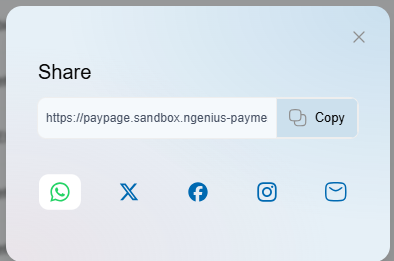
Click the sharing icon shown below to open the sharing pop-up.

-
Choose Copy link, WhatsApp, X (Twitter), Instagram, Facebook or Email.
-
If you copied the link, paste it into your message. Otherwise, review the sharing screen for your selected channel. Check the link, recipient and message before sending it to your customer.
Tips for effective sharing
- Context matters: Add a short line with order reference, amount, and expiry so customers know what they’re paying for.
- Use DMs for one-to-one links: For single-customer invoices, prefer private messages (e.g., WhatsApp, Instagram DM).
- Public posts: For a public, reusable link for multiple payers, read OneLink instead of posting a one-off invoice link.
- Link previews: Some platforms show a preview. Review your logo and branding in Configuration.
- Clipboard: If you copy the link, double-check it isn’t truncated when pasting into apps with character limits.
Security & compliance
- Never request card details in chat or comments; customers enter card data only on the hosted payment page.
- Set sensible link expiries and avoid posting one-off links publicly.
- For resend guidance, read Manage Payment Links.
Related
Updated 1 day ago