

Email notifications
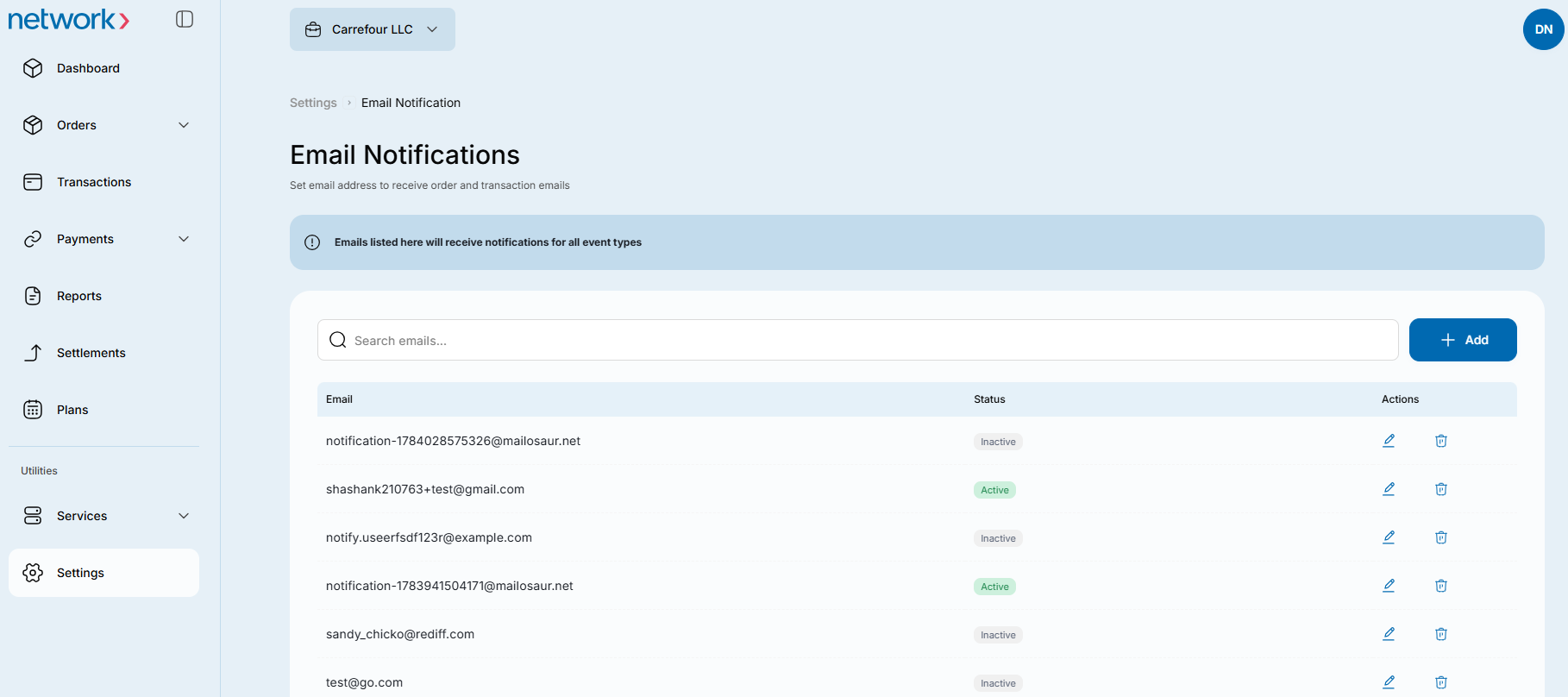
Add or update an email address for order and transaction notifications in the Merchant Portal.
Merchant Admin Users manage email notifications under Settings → Notifications.
Add an email notification
- Open Settings → Notifications and click Add in the email notifications section.
- Enter the email address and select Active or Inactive in the Status field.
- Click Add to save the notification, or Cancel to leave without adding it.
Update an email notification
- Use the search bar in the email notifications section to find the entry you want to change.
- Click its Update button and make the change in the pop-up.
- Click Update to save, or Cancel to leave without saving.
The email notifications section also has a Delete button. Confirm the deletion flow in the Portal before using it; this guide does not yet document its steps.
Updated 1 day ago
Did this page help you?